
Slow rural internet is one of the most frustrating daily realities for rural Americans — and the frustration is compounded by the feeling that there’s nothing you can do about it. But the truth is that most rural internet connections have significant untapped performance potential that the right optimizations can unlock. Whether you’re on Starlink, a cellular hotspot, fixed wireless, or even legacy satellite, there are proven technical steps that can meaningfully improve your speeds, reduce latency, and eliminate the most common causes of rural internet slowdowns. This comprehensive guide covers every optimization available to rural internet users in 2026, from basic quick wins to advanced network configuration, organized from easiest to most technical.
In This Guide
- Step 1: Diagnose Your Actual Problem
- Router and Wi-Fi Optimizations
- Starlink-Specific Speed Tips
- Cellular and Hotspot Optimization
- Fixed Wireless Optimization
- Device-Level Optimizations
- Bandwidth Management Strategies
- Hardware Upgrades Worth Making
- When Optimization Isn’t Enough: Time to Switch
- FAQs
Step 1: Diagnose Your Actual Problem
Before optimizing anything, you need to understand what’s actually wrong. Rural internet problems fall into four categories, each with different solutions:
Slow speeds: Your internet is consistently delivering below its rated performance. Measured by a speed test showing download/upload speeds significantly below what your plan advertises.
High latency: Web pages, video calls, and games feel sluggish even when speed tests show adequate bandwidth. Measured by ping time in speed tests or network diagnostic tools.
Intermittent dropouts: Connection works normally, then briefly disconnects or slows to unusable levels at unpredictable intervals.
Peak-hour degradation: Connection works well during off-peak hours but becomes slow and unreliable during evening hours (7–10 PM) when other users are online.
Run these diagnostic steps first:
- Speed test at different times of day. Run speed tests using Speedtest.net at three times: early morning (6–8 AM), midday (12–2 PM), and peak evening (8–9 PM). Note the results for each period. If evening speeds are dramatically lower than morning speeds, you have a network congestion problem. If speeds are consistently low at all times, you have a throughput or equipment problem.
- Test wired vs wireless. Connect a laptop directly to your router using an Ethernet cable and run another speed test. If wired speeds are significantly faster than your wireless measurements, your Wi-Fi is the bottleneck, not your internet connection.
- Check your ISP’s status page. Many rural ISPs (including Starlink through its app) provide real-time network status and outage information. A known outage or maintenance window explains slow speeds without any local optimization being needed.
- Test single device vs multiple devices. Run a speed test with only one device connected and all others disconnected from Wi-Fi. If single-device speeds are significantly faster than your normal experience, background app data usage on other devices is consuming bandwidth.
Router and Wi-Fi Optimizations
Wi-Fi problems are the most common cause of perceived “slow internet” that is actually a local network distribution problem rather than an ISP throughput problem. These are also the easiest fixes.
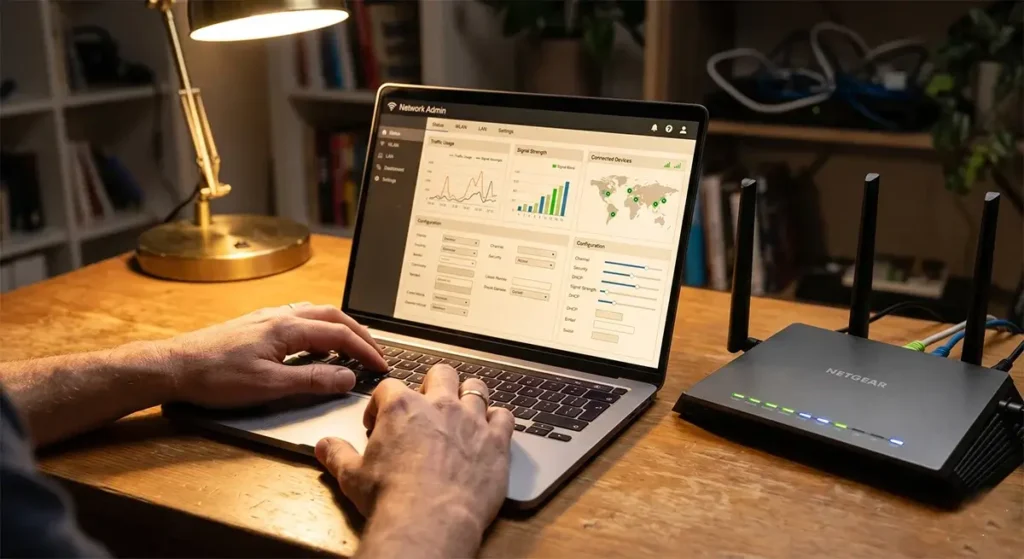
Restart your router regularly. Consumer routers benefit from periodic restarts to clear memory cache, update routing tables, and refresh DNS resolver caches. A router that has been running continuously for months may be operating significantly below its peak performance. Set up a scheduled weekly restart using your router’s administration interface (most routers support this). Many rural users report 20–40% speed improvements simply from adding a weekly restart schedule.
Update your router’s firmware. Router manufacturers regularly release firmware updates that improve performance, fix bugs, and patch security vulnerabilities. Log into your router’s administration interface (typically at 192.168.1.1 or via the manufacturer’s app) and check for firmware updates. Many routers can be configured to install updates automatically.
Change your Wi-Fi channel. Wi-Fi networks on the 2.4 GHz band use channels that can overlap with neighboring networks and cause interference. In rural areas, interference is less common than in cities, but farm equipment with electric motors, fluorescent lighting, microwave ovens, and baby monitors all generate 2.4 GHz interference. Switch your router to the 5 GHz band for devices that support it — 5 GHz offers more channels, less interference, and higher speeds at shorter distances.
Enable band steering. Most modern Wi-Fi routers and mesh systems support band steering — automatically directing devices to the 5 GHz band when they’re close enough to the router to benefit from it, while maintaining 2.4 GHz for devices at longer range. Enable this in your router settings if it isn’t already active.
Reposition your router and nodes. Router placement dramatically affects Wi-Fi distribution. Place the main router in the physical center of your home or in the room where internet use is highest. Avoid placing routers inside cabinets, closets, or against exterior walls. For mesh systems, node placement distance matters — nodes too far from each other (or with too many walls between them) create weak backhaul links that limit the entire system’s performance.
Switch DNS servers. Your DNS resolver converts web addresses (google.com) into IP addresses your computer can route to. Your ISP’s default DNS server may be slow or geographically distant. Switching to a faster DNS resolver is a free, 2-minute change that can noticeably speed up how quickly web pages start loading. Set your router’s DNS to either 1.1.1.1 (Cloudflare, generally the fastest) or 9.9.9.9 (Quad9, privacy-focused) in your router’s WAN settings.
Starlink-Specific Speed Optimization Tips
Starlink has specific optimization opportunities that don’t apply to other internet technologies:
Address all obstructions immediately. The Starlink app’s obstruction report shows you exactly how much downtime your dish is experiencing due to obstructions (trees, buildings, eaves, chimneys). Even obstructions showing under 1% of time can cause noticeable performance drops — each obstruction event interrupts your connection briefly, which disrupts streaming buffers and video call quality. Use the app’s obstruction report weekly, especially after seasonal changes when trees leaf out or after storms that may have caused branches to grow into your dish’s field of view.
Upgrade to a third-party router in Bypass Mode. The included Starlink router is functional but basic. Users who enable Bypass Mode and connect a quality mesh router (Eero Pro 6E, ASUS ZenWiFi, or similar) typically see improved Wi-Fi distribution throughout their home, better QoS management, and more consistent performance. The Starlink router’s basic QoS means that a family member’s 4K video stream can choke your video call — a quality third-party router with proper traffic prioritization prevents this.
Use Ethernet for critical devices. The Starlink Gen 3 router includes an Ethernet port (requires the Starlink Ethernet adapter, ~$25). Connecting your primary work computer and smart TV to Ethernet rather than Wi-Fi eliminates wireless-related performance variations and ensures those devices consistently get the fastest available connection.
Monitor dish temperature in summer. In climates with very hot summers, the Starlink dish’s thermal protection mode may temporarily reduce performance to prevent overheating. If you’re in a hot climate and notice consistent speed reductions on the hottest afternoons, consider whether the dish installation location receives excessive direct sun during peak heat hours. A dish location with afternoon shade while maintaining northern sky view can help.
Choose the right plan for your usage pattern. If you’re on the Standard plan and regularly hitting the 1 TB priority data threshold mid-month, upgrading to Priority eliminates deprioritization-related slowdowns for the second half of the month. Check the Starlink app’s data usage statistics to see how your household’s usage patterns align with plan thresholds.
Cellular and Hotspot Optimization
Cellular home internet (T-Mobile, Verizon, hotspots) has significant optimization potential through antenna positioning and hardware choices:
Optimize gateway/hotspot placement. Cellular signals are directional — they come from a specific tower in a specific direction. The strongest signal location in your home is not necessarily the most convenient location. Use your carrier’s signal strength measurement (accessible through the device’s admin page or the carrier’s app) and test different room locations, window sills, and elevations within your home. Even a 6-inch height difference or moving from an interior wall to a window-adjacent position can significantly improve signal strength.
Use a MIMO antenna with your hotspot. Many cellular hotspot devices and gateways include external antenna ports (SMA or TS9 connectors). Connecting a directional MIMO (Multiple Input Multiple Output) panel antenna aimed at your nearest tower through these ports can dramatically improve signal and speeds. MIMO panel antennas from Proxicast, Taoglas, or MobileMarks are compatible with most major carrier devices and cost $50–$150. Gains of 10–20 Mbps over internal antenna performance are common in signal-challenged rural environments.
Identify which band your device is using. Most cellular gateways provide diagnostics showing which band (B12, B71, n41, n77, etc.) you’re connected to. Low-band frequencies (Band 12/71 at 600–700 MHz) travel farther but have lower capacity than mid-band (Band 41/n41 at 2.5 GHz). If you’re connected to low-band when a mid-band tower is within range, changing your device placement to improve signal strength may enable it to lock onto the faster mid-band frequency.
Fixed Wireless Optimization
If you’re on a local fixed wireless WISP, your performance is largely determined by your signal-to-noise ratio to the tower. Key optimizations:
Clean the receiver. The outdoor receiver on your roof accumulates dust, bird droppings, spider webs, and debris over time. All of these reduce signal efficiency. A yearly cleaning of the receiver housing (gentle wipe with a dry microfiber cloth — no water directly on the antenna face) can recover meaningful signal quality.
Check mounting integrity. Fixed wireless receivers are sensitive to aim. A mounting bracket that has loosened or shifted due to wind, ice load, or settling can cause the receiver to point slightly off-axis from the tower, degrading your signal quality. Verify that your receiver’s mounting hardware is tight and that the dish is still aligned with the original installation aim.
Ask your WISP about equipment upgrades. Fixed wireless technology has advanced rapidly. If your installation is more than 3 years old, your WISP may have upgraded their tower equipment to support faster client connections. Ask if your customer-side receiver can be upgraded to take advantage of new tower capabilities — many WISPs offer receiver upgrades at low or no cost for customers who ask.
Device-Level Optimizations
Sometimes the “slow internet” problem is actually a slow device problem:
- Clear browser cache and cookies monthly. An overloaded browser cache causes page loading delays that feel like slow internet. In Chrome, go to Settings → Clear Browsing Data. Clearing cached images and files takes 30 seconds and can noticeably speed up browsing performance.
- Disable background app updates and sync. On Windows PCs, Windows Update, OneDrive sync, antivirus database downloads, and Cortana data sync all run in the background consuming bandwidth. Set Windows Update to download updates during off-peak hours. On smartphones, disable automatic app updates over data and restrict background data for non-essential apps.
- Use a wired connection for heavy tasks. For large file downloads, video calls, and software installations, connecting via Ethernet cable rather than Wi-Fi is the single highest-impact change most rural users can make on a device level.
- Upgrade network adapter drivers. Outdated Wi-Fi adapter drivers can cause performance issues and connectivity drops that appear to be ISP problems. Check your laptop manufacturer’s support page for the latest Wi-Fi driver updates.
Bandwidth Management Strategies
Rural internet users on data-capped or throttled connections benefit from active bandwidth management strategies:
- Schedule large downloads for off-peak hours. Software updates, game downloads, and streaming downloads should be scheduled for early morning hours (2–6 AM) when network congestion is minimal and (for HughesNet users) Bonus Zone data applies.
- Use lower streaming quality settings. Netflix 4K uses 15–25 GB per hour. HD (1080p) uses 3–5 GB/hour. Standard definition uses 1 GB/hour. If you’re on a data-capped plan, setting your streaming services to HD rather than 4K preserves a significant amount of monthly data while delivering picture quality that most viewers find indistinguishable on screens under 55 inches.
- Monitor per-device data usage. Your router’s administration interface (and especially quality routers like ASUS ZenWiFi or UniFi) can show per-device data consumption. Identifying which device or application is your household’s largest data consumer often reveals easy wins — an auto-updating game console or a smart TV continuously downloading software updates can consume gigabytes without anyone noticing.
Hardware Upgrades Worth Making
Some hardware investments have a strong ROI for rural internet users:
- A quality mesh router system ($350–$650): If you’re using the router that came with your internet service (Starlink router, HughesNet modem, or cellular gateway), upgrading to a dedicated mesh Wi-Fi system typically delivers the largest real-world performance improvement of any single hardware change. Speeds throughout your home become more consistent and peak performance improves significantly.
- A signal booster for cellular backup ($400–$650): If you rely on cellular as primary or backup internet, a weBoost Home MultiRoom or Complete booster eliminates the signal-related performance floor that throttles cellular speeds in rural areas.
- A UPS (Uninterruptible Power Supply, $80–$200): Rural areas experience more frequent minor power interruptions (momentary voltage dips, brief outages) than urban areas. These cause router reboots that interrupt active sessions. A basic UPS on your router and modem provides 10–30 minutes of clean power through minor power events.
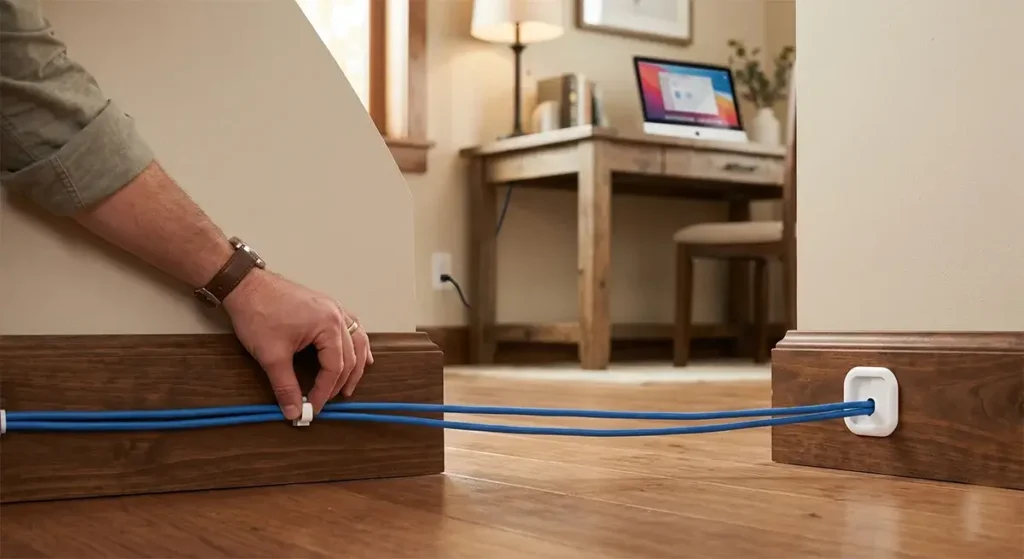
- Outdoor-rated direct-burial Ethernet cable ($0.50–$0.80/foot): Running wired connections to rooms or outbuildings where wireless performance is weak is the most durable long-term solution. Cat6 direct-burial cable requires a one-time installation effort but delivers gigabit performance indefinitely with no maintenance.
When Optimization Isn’t Enough
There are real limits to what optimization can achieve. If you’ve applied the relevant tips from this guide and still experience inadequate performance for your needs, the problem may be fundamentally with your internet service tier or technology rather than with your local setup. Clear signals that it’s time to consider switching providers:
- Wired speed tests consistently show less than 50% of your plan’s advertised speeds during any time of day
- You’re on HughesNet or Viasat and need to make regular video calls — no optimization will fix 600+ ms latency
- Your Starlink is consistently showing obstruction events that mast or location changes cannot eliminate
- You’ve exceeded your data cap every month for more than 3 months — you need a higher-tier plan
Check the FCC National Broadband Map for your address to see all providers serving your location, and consult our full guide to the Best Rural Internet Providers of 2026 for a complete comparison of available options.
Frequently Asked Questions
Why is my Starlink faster in the morning than the evening?
Starlink, like all internet services, experiences peak-hour congestion during evening hours (7–10 PM) when the most users are online simultaneously. Morning speeds represent the connection’s true capacity with minimal network load. This is normal behavior. If the performance gap is extreme (more than 50% slower in evenings), upgrading to Starlink Priority gives you priority data allocation that is less subject to deprioritization during congested periods.
Will a Wi-Fi extender help my rural internet?
A Wi-Fi extender (range extender or repeater) can extend the geographic reach of your Wi-Fi signal, but at a significant performance cost — extenders typically cut bandwidth in half because they receive and retransmit on the same radio channels. For rural homes where coverage range is the issue, a mesh Wi-Fi system with wired backhaul between nodes is a much better solution than a range extender. If you must use a wireless extender, place it at the edge of your router’s strong coverage zone (where signal is still good but fading) rather than in a dead zone.
Can I boost my Starlink speeds by adding a second dish?
Adding a second Starlink dish to the same account provides redundancy and can be configured to serve different buildings on a property, but it does not combine (“bond”) the two connections into a single faster pipe by default. Bonding two Starlink connections requires a multi-WAN router (like a Peplink Balance or UniFi Dream Machine Pro) configured for load balancing, which can distribute traffic across both connections for improved aggregate throughput. This is a practical option for rural businesses or farms that need both redundancy and additional bandwidth.



Leave a Reply