
The remote work revolution has been transformative for rural America. For the first time in generations, knowledge workers have the option to live in rural areas — with the space, nature, lower costs, and community they prefer — without sacrificing their careers. The catch, of course, is internet. The difference between a rural property that enables remote work and one that prevents it often comes down to connectivity. This comprehensive guide covers everything a rural remote worker needs to know: what internet speeds you actually need, which providers can deliver them, how to set up a reliable work-from-home environment in a rural setting, and what to do when connectivity falls short.
In This Guide
- The Rural Remote Work Reality in 2026
- What Internet Speeds Do You Actually Need?
- Best Internet Providers for Rural Remote Workers
- Optimizing for Video Calls in Rural Settings
- VPN and Security on Rural Internet
- Backup Connectivity Strategy
- Setting Up a Rural Home Office
- Working with Your Employer on Rural Connectivity
- FAQs
The Rural Remote Work Reality in 2026
Remote work is no longer a pandemic-era anomaly — it is a permanent fixture of the American workforce. According to Pew Research Center, approximately 35% of workers with jobs that can be done remotely were working from home at least some of the time as of 2023, and that number has remained elevated. For rural America, this represents a once-in-a-generation economic opportunity: professional incomes no longer tied to expensive urban real estate markets, combined with the rural lifestyle that millions of Americans actually prefer.
The opportunity is real, but so is the connectivity gap. Rural areas that were once write-offs for remote workers — no fiber, no cable, spotty cellular — are now accessible thanks primarily to Starlink’s satellite broadband deployment. But “accessible” doesn’t mean “optimized.” Getting the most out of remote work from a rural location requires deliberate infrastructure choices, smart backup planning, and some adaptations to how you approach your workday.
What Internet Speeds Do You Actually Need for Remote Work?
A common source of confusion is overstating internet speed requirements for remote work. Most knowledge workers need significantly less bandwidth than they think, but they need it to be consistent and low-latency — and those requirements are different from raw speed.
| Work Activity | Download Required | Upload Required | Latency Sensitivity |
|---|---|---|---|
| Email / basic web browsing | 1–5 Mbps | 1 Mbps | Low |
| Zoom / Google Meet (HD) | 2–4 Mbps | 2–4 Mbps | High — under 150 ms needed |
| Zoom (1080p HD) | 3–5 Mbps | 3–5 Mbps | High |
| Microsoft Teams | 4–6 Mbps | 3–5 Mbps | High |
| Cloud document editing (Google Docs, Office 365) | 2–5 Mbps | 1–3 Mbps | Low |
| VPN tunnel (corporate) | 5–15 Mbps | 2–10 Mbps | Moderate |
| Large file uploads (design, video) | Any | 10–50 Mbps | Low — speed matters |
| Cloud storage sync (Dropbox, Google Drive) | 2–5 Mbps | 5–20 Mbps | Low |
| Remote desktop (RDP, VDI) | 5–20 Mbps | 2–5 Mbps | High — under 100 ms needed |
| SaaS applications (Salesforce, HubSpot) | 2–5 Mbps | 1–3 Mbps | Low |
For a single rural remote worker, a consistent 25 Mbps download / 10 Mbps upload connection with under 100 ms latency handles all common work-from-home tasks simultaneously — including an active video call, cloud sync, and general browsing. The critical qualifier is “consistent” — a connection that averages 50 Mbps but drops to 5 Mbps during video calls is worse than a steady 15 Mbps connection.
The latency requirement is what makes Starlink and fixed wireless the only satellite options viable for serious remote work. HughesNet and Viasat’s 600–800 ms latency makes video calls degraded and VPN tunnels sluggish regardless of their advertised download speeds.
Best Internet Providers for Rural Remote Workers
1. Starlink (Best Overall for Remote Work): Starlink is the most reliable solution for rural remote workers without fiber or cable access. Its 20–60 ms latency enables video calls, VPN, remote desktop, and all real-time work applications. The Priority plan ($250/month) is worth the extra cost for workers who cannot afford unpredictable speed drops during critical calls.
2. T-Mobile Home Internet (Best Value When Available): At $50/month with no data cap, T-Mobile Home Internet is the best-value remote work connection when available and performing adequately. Check availability first and trial it before investing in Starlink hardware. The key is consistent performance — test it for 30 days during your actual working hours before concluding it’s reliable enough.
3. Local Fixed Wireless WISP (Best Performance When Available): A local WISP offering 50–100 Mbps with 10–30 ms latency and a reliable SLA is the ideal rural remote work connection. Less weather-dependent than satellite, lower latency than Starlink, and often competitive pricing. The limitation is availability.
4. HughesNet / Viasat (Not Recommended for Remote Work): High latency (600–800 ms) makes these unsuitable as primary connections for work that includes video calls or real-time applications. Acceptable for email-only workers with no video call requirements, but we recommend exploring all other options first.
Optimizing Video Calls on Rural Internet
Video calls are the most demanding and most latency-sensitive common remote work application. Here’s how to optimize your video call experience on rural internet:
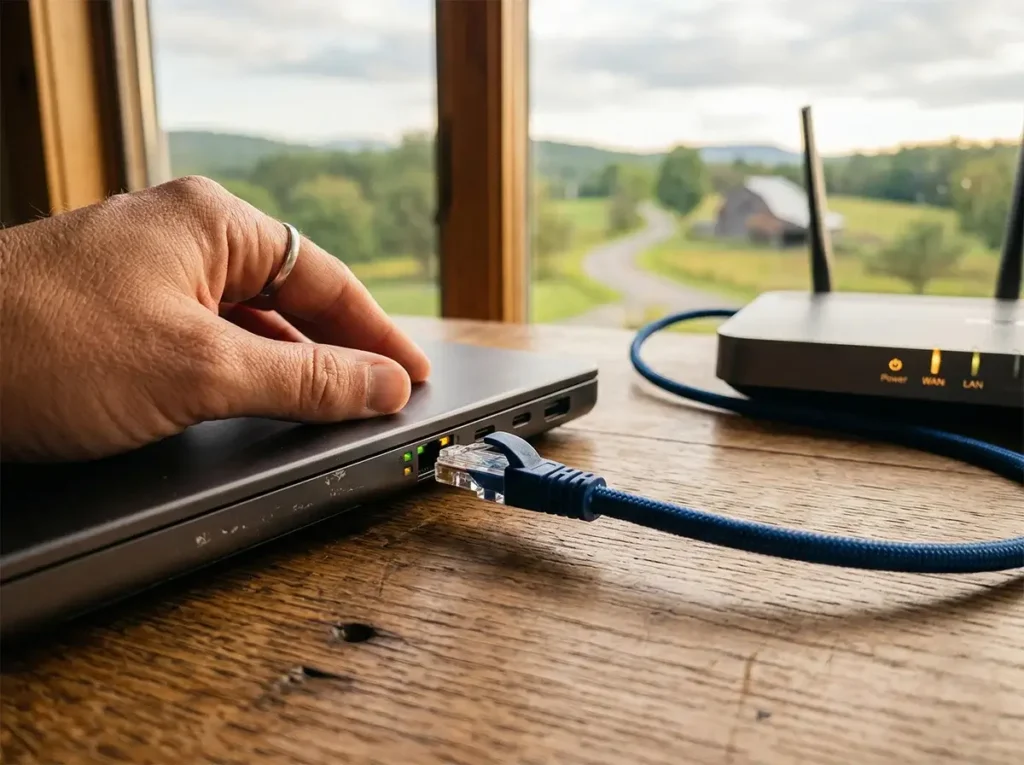
- Use wired Ethernet, not Wi-Fi, for video calls. Connect your laptop directly to your router via Ethernet cable for video calls. Wi-Fi adds latency and introduces packet loss that degrades call quality. Even a short Ethernet cable makes a measurable difference.
- Close background applications during calls. Cloud sync services (Dropbox, OneDrive, Google Drive), Windows updates, and streaming services competing for bandwidth during a video call cause noticeable quality drops. Pause syncing during scheduled meetings.
- Lower your video resolution if needed. In Zoom and Teams, you can manually set your outgoing video to 720p rather than 1080p, reducing your upload requirement by approximately 50%. Most employers won’t notice the difference in a meeting context.
- Schedule large uploads outside of business hours. Large file uploads to shared drives, video rendering exports, and software updates should be scheduled for evenings or early mornings when your rural connection is at its fastest and your video call schedule is clear.
- Consider a dedicated work time window. On rural internet connections that experience peak-hour congestion in the evenings, you can turn this to your advantage: rural off-peak hours often start earlier in the morning (5–8 AM) and midday, meaning your most bandwidth-intensive work can be done during those times.
VPN and Security on Rural Internet
Many employers require workers to connect through corporate VPN tunnels for security reasons. VPN connections add a layer of routing overhead that increases effective latency. On rural Starlink (baseline 20–60 ms), VPN typically adds 10–30 ms, bringing your working latency to 30–90 ms — still usable for most applications. On geostationary satellite (baseline 600 ms), VPN adds to an already-unworkable latency baseline.
For workers on Starlink, split-tunneling VPN configurations (where only traffic destined for corporate systems goes through the VPN, while general internet traffic routes directly) significantly improve performance while maintaining security for sensitive resources. Discuss this option with your IT department if you’re experiencing performance issues on VPN.
Backup Connectivity Strategy for Rural Remote Workers
A single point of failure in your internet connection is a professional liability for a remote worker. Build a backup connectivity plan:
- Primary: Starlink or fixed wireless broadband (your main work connection)
- Backup: T-Mobile or Verizon cellular hotspot (for when primary is down)
- Failover hardware: A dual-WAN router (Peplink, Draytek, or consumer Netgear Nighthawk) that automatically switches to your cellular backup when primary connectivity drops — without interrupting active calls or VPN sessions
The cost of a cellular backup plan ($30–$60/month for a hotspot data plan) is modest insurance against the professional cost of missing a client call or deadline because your Starlink went down during a snowstorm. For workers billing $50–$200/hour, a single prevented outage pays for months of backup service.
Setting Up a Reliable Rural Home Office Network
Your network setup matters as much as your internet provider. Here is our recommended rural home office network setup:
- Starlink dish: Mounted on roof or tall mast for clear northern sky view
- Third-party router (in Bypass Mode): An Eero Pro 6E, ASUS ZenWiFi, or UniFi Dream Machine for better Wi-Fi coverage and advanced QoS settings than the Starlink router provides
- Wired Ethernet drop to your desk: Direct Ethernet connection for your primary work computer
- QoS configuration: Priority queue your work computer’s traffic so that family streaming activity doesn’t degrade your video call quality
- Cellular backup router: A Pepwave SURF SOHO or similar dual-WAN router with a cellular SIM for automatic failover
- UPS (Uninterruptible Power Supply): A UPS on your modem, router, and computer protects against the brief power fluctuations common in rural areas and gives you 15–30 minutes of uptime during a power outage — enough to finish most calls and save your work

Working with Your Employer on Rural Connectivity
If you are relocating to or remaining in a rural area for remote work, communicate proactively with your employer about your connectivity setup. Most employers want to understand your setup — not to penalize rural workers, but to ensure business continuity. Key points to address:
- Your primary connection type, provider, and typical speeds and latency
- Your backup connectivity plan and hardware for failover
- Any VPN-related performance considerations and proposed solutions
- Your work schedule and how you’ve optimized bandwidth-intensive activities
Many companies now have formal remote work policies that include minimum internet speed requirements. If your connection meets those requirements, your rural location should present no additional professional friction.
Frequently Asked Questions
Is Starlink reliable enough for full-time remote work?
Yes, for the vast majority of rural remote workers. Starlink’s primary limitation is occasional brief outages due to obstructions or heavy precipitation. These events are infrequent (typically under 1% of total time) and short (usually under 5 minutes). A cellular backup connection handles the rare extended outage. Thousands of rural professionals rely on Starlink as their sole remote work connection successfully.
Will working from home rural hurt my career?
With reliable internet, the career impact of remote rural work is largely the same as remote work anywhere — which research suggests is neutral to positive for most knowledge workers. The connectivity infrastructure discussed in this guide brings rural remote work up to the same effective bandwidth standard as working from a city apartment.
How do I convince my employer to let me work from a rural area?
Come prepared with specifics: your Starlink plan details, your backup connection plan, your home office network setup, and a 30-day trial offer where you demonstrate your productivity and connectivity before a permanent approval. The FCC’s current broadband standards recognize Starlink as broadband-class internet — you can reference official sources to demonstrate that rural broadband now meets professional standards.




Leave a Reply