
The remote work revolution has sent millions of people to rural areas seeking space, affordability, and the lifestyle that rural living offers — only to discover that the internet infrastructure they took for granted in cities was nowhere to be found on their new rural property. At the same time, millions of rural Americans who were already living in the country suddenly had access to remote work opportunities that had previously required an urban address. Both groups face the same challenge: building a rural home office internet setup that actually supports professional remote work — reliable video calls, responsive VPN connections, adequate upload speeds for file sharing, and enough resilience to survive the occasional weather event or equipment issue without losing a client call. This comprehensive guide covers everything rural remote workers need to build a professional-grade home office internet setup in 2026.
In This Guide
- What Remote Work Actually Needs from Your Internet
- Best Internet Services for Rural Remote Workers
- Building a Professional Rural Home Office Network
- Optimizing Video Calls on Rural Internet
- VPN Performance for Rural Remote Workers
- Backup Internet for Critical Remote Work
- Power Resilience for Rural Home Offices
- Conversations to Have With Your Employer
- Tax Deductions for Rural Remote Worker Internet
- Frequently Asked Questions
What Remote Work Actually Needs From Your Internet
The most important thing to understand about remote work internet requirements is that they are less about raw download speed and more about upload speed, latency, and consistency. A rural connection that delivers 100 Mbps downloads but only 3 Mbps upload will fail for any job that requires sending your video and audio to other participants in meetings — which describes virtually every professional remote work role in 2026.
| Remote Work Application | Download Needed | Upload Needed | Latency Needed | Most Important Factor |
|---|---|---|---|---|
| Zoom HD video call (1 person) | 3–5 Mbps | 3–5 Mbps | Under 150 ms | Upload + latency |
| Zoom with 5+ participants, camera on | 10+ Mbps | 5+ Mbps | Under 100 ms | Upload + latency |
| Microsoft Teams (standard) | 4 Mbps | 4 Mbps | Under 150 ms | Upload + latency |
| Screen sharing in meetings | 5 Mbps | 8–10 Mbps | Under 150 ms | Upload critical |
| VPN (corporate network access) | Varies (+20%) | Varies (+20%) | VPN adds 10–30 ms | Overall performance |
| Cloud file storage (Google Drive, OneDrive) | 5–20 Mbps | 5–20 Mbps | Low | Upload speed |
| Remote desktop (RDP, Citrix) | 5–10 Mbps | 2–5 Mbps | Under 100 ms | Latency critical |
| Slack/Teams messaging only | 1–3 Mbps | 1–2 Mbps | Low | Not demanding |
| Email and web browsing | 5–10 Mbps | 2–5 Mbps | Low | Not demanding |
The data reveals a consistent pattern: upload speed and latency are the critical factors for every high-stakes remote work application. HughesNet and Viasat’s 2–5 Mbps upload and 600+ ms latency fail on both counts — they cannot reliably support professional video calls regardless of their download speed. Starlink’s 8–18 Mbps upload (Standard) and 20–60 ms latency meets the requirements for professional video calls at all usage levels typical of remote work roles.
Best Internet Services for Rural Remote Workers
1. Starlink Priority ($250/month) — Best for Professional Remote Work
The Priority plan’s 15–35 Mbps upload range provides genuine headroom above the minimum video call requirements — critical for days when you have multiple back-to-back video calls while your home’s other internet users are also active. The unlimited priority data eliminates the concern about data consumption from full-day work sessions. The business plan terms and Starlink’s priority support tier are meaningful for professional users who need more responsive issue resolution than the residential support model provides.

2. Starlink Standard ($120/month) — Good for Most Remote Workers
For remote workers with moderate video call volume (2–4 calls per day, not simultaneously), the Standard plan’s 8–18 Mbps upload is adequate. Monitor your monthly data usage carefully — a full-time remote worker attending 6 hours of video calls daily consumes approximately 300–400 GB of priority data per month in video call traffic alone, leaving 600–700 GB for other household uses before the 1 TB threshold. For households with multiple remote workers or heavy streaming in evenings, Priority’s unlimited data may ultimately be more cost-effective than managing the Standard plan’s threshold.
3. Local Fixed Wireless WISP ($40–$80/month) — Best Value When Available
If a local WISP covers your rural property with 25+ Mbps and under 50 ms latency, this is the best value for professional remote work — significantly cheaper than Starlink with adequate performance and often local customer service. The limitation is availability — WISPs are geographically specific and many rural remote worker locations are beyond their coverage zones.
Building a Professional Rural Home Office Network
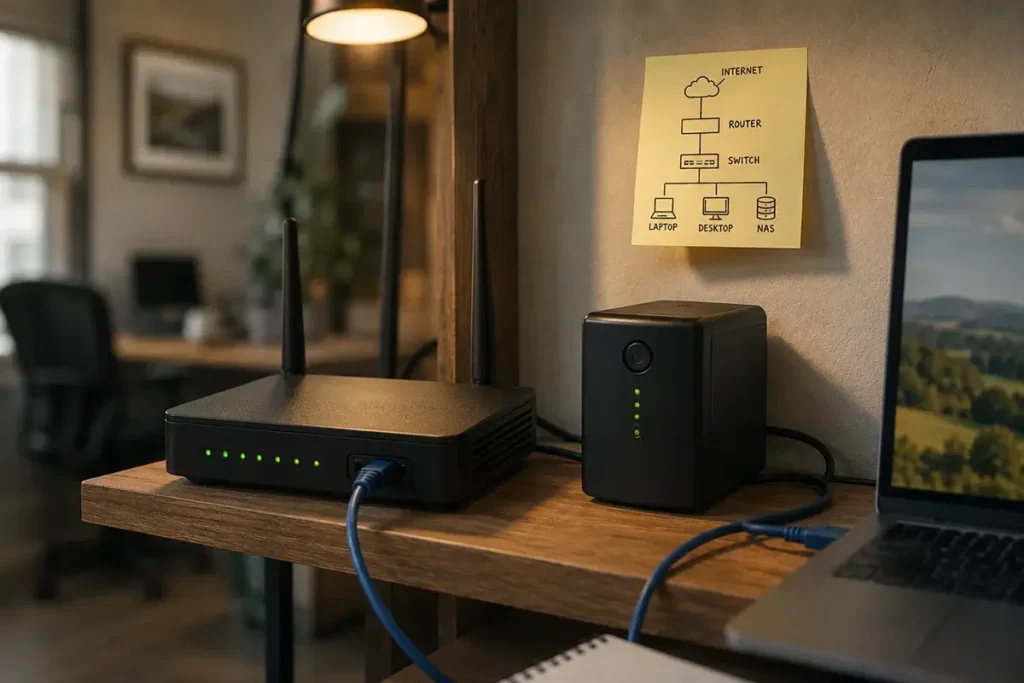
A professional rural home office requires dedicated network infrastructure separate from household general use — not because Starlink lacks the bandwidth for both, but because network congestion, QoS management, and security all benefit from a dedicated professional setup:
Wired Ethernet to your home office desk: This single change — connecting your primary work computer to your router via Ethernet cable rather than Wi-Fi — eliminates Wi-Fi variability from your video calls and remote desktop sessions. On Wi-Fi, a microwave oven, a neighbor’s device, or simple physical distance from the router can cause momentary packet loss that manifests as choppy audio or frozen video on calls. Wired Ethernet eliminates these variables entirely. Install an outdoor-rated Cat6 cable from your router to your home office if they’re not in the same room.
QoS configuration prioritizing work traffic: Configure your router’s Quality of Service (QoS) settings to prioritize video conferencing traffic (Zoom, Teams, Meet) over background applications (streaming services, cloud backup, OS updates, gaming). On a Peplink, ASUS, or UniFi router, QoS allows you to specifically name the applications to prioritize. When a family member’s Netflix session and your Zoom call are competing for the same upload bandwidth, QoS ensures your call gets priority access rather than competing equally with streaming traffic.
Separate work VLAN from household devices: Configure your router to create a separate network VLAN (Virtual Local Area Network) for work devices — your work laptop, work phone, and any work-related peripherals. This separation provides security isolation (household IoT devices cannot communicate with your work devices), network traffic visibility (you can monitor work bandwidth usage separately from household), and VPN isolation (work VPN traffic doesn’t interfere with household internet activity).
UPS on all network equipment: A rural power fluctuation that reboots your router mid-call is a professional embarrassment that a UPS prevents at minimal cost. An APC 1500VA UPS ($120–$150) on your Starlink router, any network switches, and your home office workstation provides 30–45 minutes of clean power through any outage — enough to gracefully end calls and save work before shutting down cleanly during an extended outage.
Optimizing Video Calls on Rural Starlink
Video calls are the most important and most demanding regular remote work application for rural internet. These specific optimizations improve call quality on Starlink connections:
- Use wired Ethernet for the video call device. This is the single highest-impact improvement available. Eliminate Wi-Fi variability from the equation entirely for your primary work computer.
- Lower your outgoing camera resolution during congested periods. Zoom and Teams allow manual video quality settings. During peak-hour congestion when Starlink’s upload speeds may be temporarily reduced, dropping from 1080p to 720p outgoing camera quality reduces upload bandwidth by approximately 60% while remaining completely professional-quality for the other participants.
- Disable background video effects (blur, virtual backgrounds) if using a laptop. Background blur and virtual backgrounds consume significant CPU processing that can cause choppy frame rates on less powerful laptops — a hardware bottleneck that manifests as video quality issues on calls. Disable these features if your laptop is older (pre-2020) to eliminate this performance bottleneck.
- Schedule large uploads and downloads for non-meeting times. Cloud backup systems, large file uploads, and software updates should be scheduled for lunch breaks or after hours — not during back-to-back morning meeting blocks when upload bandwidth needs to be available for video calls.
- Test your connection before important calls. Run a Waveform bufferbloat test (waveform.com/tools/bufferbloat) before any critical client call or job interview. This test specifically identifies whether your connection has the consistent latency needed for smooth video call performance, giving you early warning of issues that allow you to reboot your router or switch to your backup connection before the call begins.
Backup Internet for Critical Remote Work
For rural remote workers where a missed call or connectivity gap during work hours has professional consequences — client-facing roles, roles with strict availability requirements, consulting or contracting work billed by the hour — a backup internet connection is professional infrastructure, not an optional luxury.
The most practical rural remote work backup configuration: Starlink as primary (best performance) + a dedicated Verizon or AT&T cellular data plan as backup. A Peplink Surf SOHO router ($200) manages both connections with automatic failover — if Starlink drops for any reason, all traffic automatically routes through the cellular backup within 2–3 seconds. Most video conferencing applications have auto-reconnect capability and will seamlessly reconnect after the brief failover transition without losing the meeting session.
The combined monthly cost ($250 Starlink Priority + $40–$60 cellular backup) represents a meaningful investment — but for a professional earning $60,000–$150,000+ per year in a remote role, the cost of a single missed or degraded critical client call exceeds several months of backup internet service cost. Frame the backup connection as professional liability insurance, not an internet luxury expense.
Conversations to Have With Your Employer About Rural Internet
Many rural remote workers don’t realize that their employer may have obligations, resources, or willingness to support their rural internet setup that they’ve never explored. Important conversations to initiate:
IT department and equipment approval: Your employer’s IT team needs to know you’re on a satellite connection with CGNAT network architecture (which affects some VPN configurations) and that your public IP address may change periodically. This information helps IT configure your VPN access correctly for a satellite connection and prevents unexpected authentication issues when your IP changes.
Internet stipend or expense reimbursement: Many companies with formal remote work policies include internet service as an eligible expense reimbursement or provide a monthly internet stipend ($50–$100/month is common). Check your company’s remote work policy or ask HR — you may be leaving reimbursement money on the table by not claiming it.
Split tunneling approval: If your company’s VPN requires full-tunnel mode (all traffic through the VPN), ask IT if split tunneling can be approved for your account — routing only company-specific traffic through VPN while general internet traffic bypasses VPN overhead. This single configuration change can dramatically improve your effective connection performance on rural satellite. See our full VPN guide for rural internet for technical details on this request.
Frequently Asked Questions
My employer says my internet isn’t reliable enough for remote work. How do I prove it is?
Document your connection performance with systematic speed tests. Use the M-Lab Speed Test (speed.measurementlab.net) — the FCC-endorsed measurement tool — to run 10+ tests at different times across multiple business days and capture screenshots of each result with timestamps. Run a Waveform bufferbloat test specifically to demonstrate video call readiness. Present this documentation to IT or HR as evidence of your connection’s professional adequacy. Employers typically want to see consistent 10+ Mbps upload and under 100 ms latency for video call roles — Starlink Priority routinely meets both thresholds. According to the Bureau of Labor Statistics, remote work has become a standard employment arrangement for a substantial portion of the American workforce — employers have strong competitive reasons to accommodate reasonable rural internet situations rather than forcing relocation.
Can I work remotely from a rural area on HughesNet?
For most professional remote work roles, no. HughesNet’s 600 ms latency makes video calls suffer from severe delay that creates professional friction in every client and team interaction. If your remote work role truly requires no video calls and no VPN access (rare in 2026), HughesNet’s data speeds are technically functional — but the data cap will limit your ability to use cloud services for extended periods. For any role with regular video meeting requirements, Starlink is a professional necessity for rural remote workers.
What is the minimum internet speed I need for rural remote work?
The practical minimum for professional remote work with video calls is 5 Mbps symmetric (equal upload and download) with latency under 150 ms. Starlink Standard exceeds these thresholds in normal conditions. The more relevant question is whether your connection meets these minimums consistently throughout business hours — not just at off-peak times. Test specifically during your busiest meeting times (typically 9–11 AM and 1–3 PM) to assess real-world professional-hours performance rather than best-case off-peak speeds.




Leave a Reply